Web dashboard on your server
The FounderMode agent itself serves a read-only web dashboard on your Linux server: threat level, CPU/RAM/disk, blocked attacks, vulnerabilities, installed technologies, listening services, AI summary and a report export calendar. Available with the Pro and Business plans.
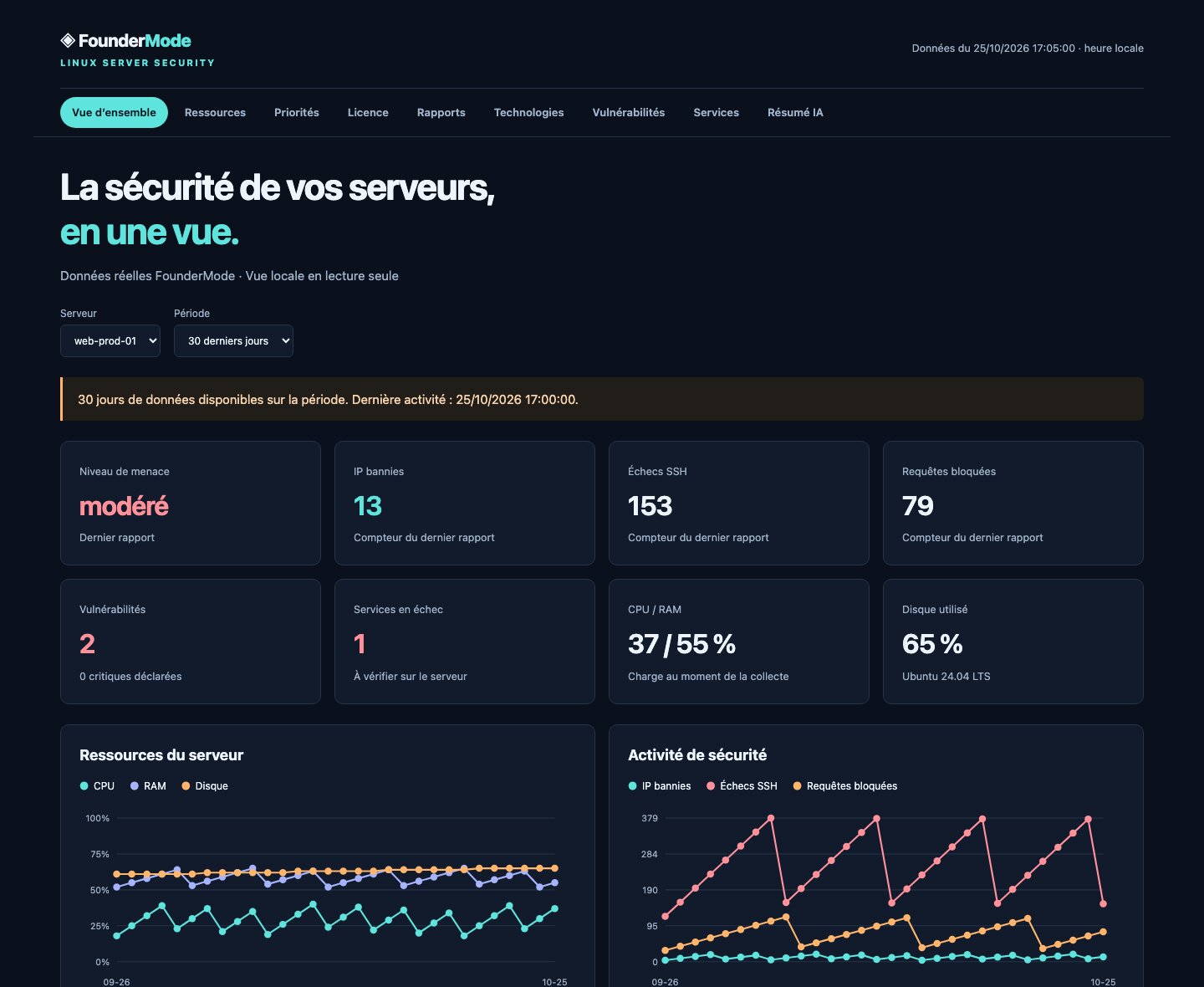
Screenshot taken with fictional demo data.
The header at the top links straight to each section: Overview, Resources, Priorities, License, Reports, Technologies, Vulnerabilities, Services and AI summary. It stays visible while scrolling and highlights the current section.
1. Launch the dashboard
With a Pro or Business license, the dashboard starts automatically at the end of the installation: the agent prints its private link. To launch or relaunch it at any time:
sudo foundermode dashboardThe agent prints a link like:
📊 Dashboard FounderMode (lecture seule, lien privé) :
   http://203.0.113.10:8787/kS3v…jeton-secret…
203.0.113.10 is your server's public IP, 8787 the port, and the end of the link a secret token: without it the dashboard answers "private link required". Open this link in your browser.
The dashboard runs as a systemd service (geniussecurity-dashboard.service): it restarts with the server and refreshes its data every 5 minutes from your FounderMode reports.
2. Open port 8787
The dashboard listens on port 8787 (change it with --port). To reach it from your browser, this port must be open on the server and at your hosting provider.
On the server — the agent detects UFW and firewalld and prints the command to run:
# Ubuntu / Debian (UFW)
sudo ufw allow 8787/tcp
# Recommended: only allow your own IP
sudo ufw allow from YOUR_IP to any port 8787 proto tcp

# Rocky / Alma / RHEL / Fedora (firewalld)
sudo firewall-cmd --permanent --add-port=8787/tcp && sudo firewall-cmd --reload

# Plain iptables (rule not persistent across reboots)
sudo iptables -I INPUT -p tcp --dport 8787 -j ACCEPT
At your hosting provider — add an inbound TCP 8787 rule:
| Provider | Where to open the port |
|---|---|
| AWS EC2 / Lightsail | Security group → Inbound rules → Custom TCP 8787 (or Lightsail → Networking) |
| Google Cloud | VPC network → Firewall → ingress rule TCP 8787 |
| Azure | Network security group → Inbound port rule 8787 |
| OVHcloud, Scaleway, Hetzner, DigitalOcean, Contabo | Control panel firewall (Firewall / Security group), if enabled |
YOUR_IP is your computer's public IP: run curl -4 ifconfig.me on your computer.
3. Use your own domain name (optional)
- At your registrar (GoDaddy, OVH, Gandi, Cloudflare…), create an A record:
| Type | Name | Value | |---|---|---| | A | dashboard | Your server's public IP |
- Wait for DNS propagation (a few minutes to a few hours), then give the domain to the agent:
sudo foundermode dashboard --domain dashboard.your-domain.comThe link becomes http://dashboard.your-domain.com:8787/…. You can also set it during installation:
curl -fsSL https://foundermode.fr/install.sh | sudo bash -s -- --key GS-XXXXX-XXXXX-XXXXX-XXXXX \
  --dashboard-domain dashboard.your-domain.com
HTTPS recommended: the dashboard speaks plain HTTP. To serve it over HTTPS on your domain, put it behind a reverse proxy. With Caddy, which obtains the certificate automatically:
sudo caddy reverse-proxy --from dashboard.your-domain.com --to 127.0.0.1:8787The link then becomes https://dashboard.your-domain.com/<token>.
4. Useful commands
| Command | Effect |
|---|---|
sudo foundermode dashboard | Launches (or relaunches) the dashboard and prints the link |
sudo foundermode dashboard url | Prints the private link again |
sudo foundermode dashboard --port 8788 | Changes the listening port |
sudo foundermode dashboard --domain dashboard.example.com | Uses your domain name in the link |
sudo foundermode dashboard --new-token | Creates a new link; the old one stops working |
sudo foundermode dashboard stop | Stops the dashboard |
The link does not open?
Check in this order, on the server:
- The service is running:
sudo systemctl status geniussecurity-dashboardshould showactive (running). Otherwise:sudo foundermode dashboard, thensudo journalctl -u geniussecurity-dashboard -n 50. - It answers locally:
sudo foundermode dashboard urlprints the link; test it on the server withcurl -s -o /dev/null -w "%{http_code}\n" http://127.0.0.1:8787/YOUR_TOKEN→200expected.404means the token is incomplete: copy the whole link. - The port is free:
sudo ss -ltnp | grep 8787. If another program uses it:sudo foundermode dashboard --port 8788(and open that port). - The server and provider firewalls allow the port (section 2). From your computer:
nc -vz SERVER_IP 8787should reportsucceeded/open. - The right IP: behind NAT or a private network, the printed IP may not be reachable from the Internet; use the public IP given by your provider.
- Your domain:
dig +short dashboard.your-domain.commust return the server IP; otherwise wait for DNS propagation or fix the A record. - "Dashboard indisponible": the server has not sent a report yet (
sudo foundermode report) or the license is not Pro/Business (sudo foundermode license).
Security
- Read-only: the dashboard runs no action on the server and never displays your license key.
- The link contains a 32-character secret token: only share it with people you trust. If it leaked, run
sudo foundermode dashboard --new-token. - Pages are served without caching or referrer and cannot be embedded in another site.
Prefer not to expose anything on the server? Generate the dashboard from your computer with Claude Code (MCP).